Teleoperation devices#
A supplemental specification for teleoperation simulated robots using external control devices
Install drivers#
If you have questions with respect to hardware driver installation, please check https://github.com/JackHaoyingZhou/daVinci_simulation
In src/razer_hydra and src/ros_geomagic folders, detailed instructions are provided.
How to enable teleoperation devices#
In a separate terminal, run following commands directly to enable the devices:
Raze Hydra#
roslaunch razer_hydra hydra.launch
Geomagic Touch#
roslaunch geomagic_control geomagic_headless.launch
MTM#
It would require some acquaintance of dVRK and/or CRTK as prerequisite. Please check the following wiki for more information if you are interested: https://github.com/jhu-dvrk/sawIntuitiveResearchKit/wiki/FirstSteps
If you have successfully installed dVRK and have physical MTMs, please run following command to enable MTM firstly:
rosrun dvrk_robot dvrk_console_json -j <json file for MTMs>
2. How to run teleoperation with AMBF#
Run AMBF simulation:#
./run_environment.sh
If you install the integrated environment from https://github.com/JackHaoyingZhou/daVinci_simulation, then, please run
./run_environment0.sh
Run teleoperation#
Firstly, go to teleoperation folder via running
cd ~/surgical_robotics_challenge/scripts/teleoperation
Geomagic#
./geomagic_psms_teleop.sh
Razer Hydra#
HydraL-PSM1 teleop:
./hydral_psm1_teleop.sh
HydraR-PSM2 teleop:
./hydrar_psm2_teleop.sh
HydraL-PSM1-HydraR-PSM2 teleop:
./hydra_psm_pair_teleop.sh
MTM#
MTML-PSM1 teleop:
./mtml_psm1_teleop.sh
MTMR-PSM2 teleop:
./mtmr_psm2_teleop.sh
MTML-PSM1-MTMR-PSM2 teleop:
./mtm_psm_pair_teleop.sh
button instructions#
** Note:
clutch : if you are on "clutch" status, you are free to move your teleoperation device but the PSMs in AMBF will not follow, therefore you can extend your workspace.
Geomagic#
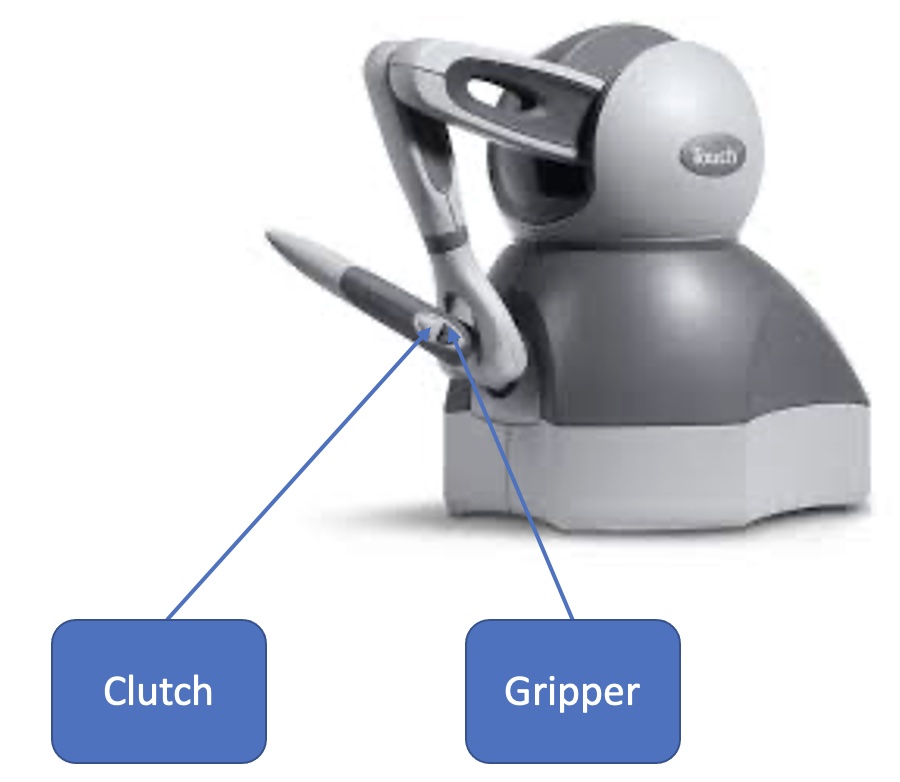
| Button Motion | Action |
|---|---|
| push/hold on clutch button | Clutch |
| push clutch button twice | Switch PSM arm |
| push/hold on gripper button | close the gripper |
Razer Hydra#
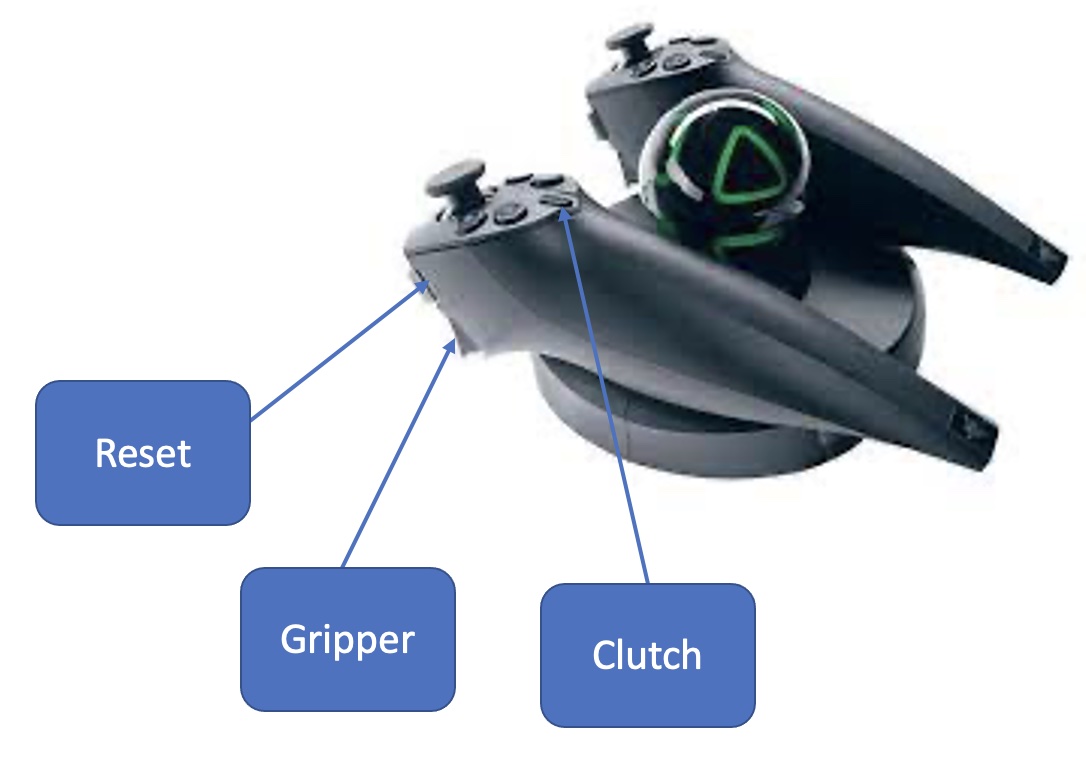
| Button Motion | Action |
|---|---|
| push/hold on clutch button | Clutch |
| push/hold on reset button and clutch button at the same time | Reset your Razer Hydra base frame the same as your current pose if you feel uncomfortable with default Hydra frame setup |
| push/hold on gripper button | close the gripper |
Reference#
Reference of this work:
@article{munawar2022open,
  title={Open Simulation Environment for Learning and Practice of Robot-Assisted Surgical Suturing},
  author={Munawar, Adnan and Wu, Jie Ying and Fischer, Gregory S and Taylor, Russell H and Kazanzides, Peter},
  journal={IEEE Robotics and Automation Letters},
  volume={7},
  number={2},
  pages={3843--3850},
  year={2022},
  publisher={IEEE}
}